| Charity No: 1197240
%20Medium.avif)
Before you donate your device to Every Child Online, you should first transfer information to your new device, then, if applicable, remove your personal information from your old device.
Before you donate your device to Every Child Online, you should first transfer information to your new device, then, if applicable, remove your personal information from your old device.
You shouldn’t manually delete your contacts, calendars, reminders, documents, photos or any other iCloud information while you’re signed in to iCloud with your Apple ID. This would delete your content from the iCloud servers and any of your devices signed in to iCloud.

If you’re trading in your iPhone at an Apple Store, you may need your Apple ID password. To save time, make sure you know your password (or reset it to a password you know) before you come to the store.
If you have enabled Stolen Device Protection on your iPhone, changing your password at the store is likely to have a one-hour security delay.
Follow these steps to transfer information to your new device and, if applicable, remove your personal information from your old device.
If you have a new iPhone or iPad, you can use Quick Start to automatically transfer information from your old device to your new device if you’re using iOS 11 or later. Use iCloud, iTunes or the Finder to transfer information to your new device if you’re using iOS 10 or earlier.
If your phone number will change with your new device, add additional trusted phone numbers to your account to ensure you don’t lose access. If you no longer have access to your old phone number, you can generate a two-factor authentication code on your old device if needed.
When you erase your iPhone or iPad, Find My [device] and Activation Lock are turned off.
If the steps above weren’t completed and you no longer have your device, follow these steps:
Before donate in an Android device to Every Child Online, make sure you do the following:
Contact your device’s manufacturer if you need help.
Reset your Mac to factory settings to prepare it for a new owner.
Your Mac will only have the Erase All Content and Settings feature if it meets these requirements:
If your Mac meets these requirements, follow the steps to erase your Mac and reset it to factory settings.
If the Erase All Content and Settings feature isn’t available on your Mac, follow these steps instead. Before you begin, it helps to know which macOS your Mac is using.
1. Back up or transfer your files
If you don’t have a current backup, you can back up your files to an external storage device or transfer your files to a new Mac.
2. Sign out of iTunes
If you’re using macOS Catalina or later, you can skip this step.
3. Sign out of iCloud
When you follow these steps to sign out of iCloud, you’ll be asked whether to keep a copy of your iCloud data on this Mac. It’s faster to just keep a copy, because you will erase your Mac later.
If your Mac has been paired with a Bluetooth keyboard, mouse or other device that you’re planning to keep, you can unpair it. This optional step prevents any accidental input when the Mac and device have separate owners but remain within Bluetooth range.
If you do this on a Mac that doesn’t have a built-in keyboard or trackpad, you will need to plug in a USB keyboard and mouse to complete the remaining steps.

In just a few steps, your old device can help change someone’s digital future.
Secure logistics from start to finish
Certified data erasure for every device
Maximising reuse, minimising waste
Empowering digital inclusion
Transparent results for CSR, ESG & compliance
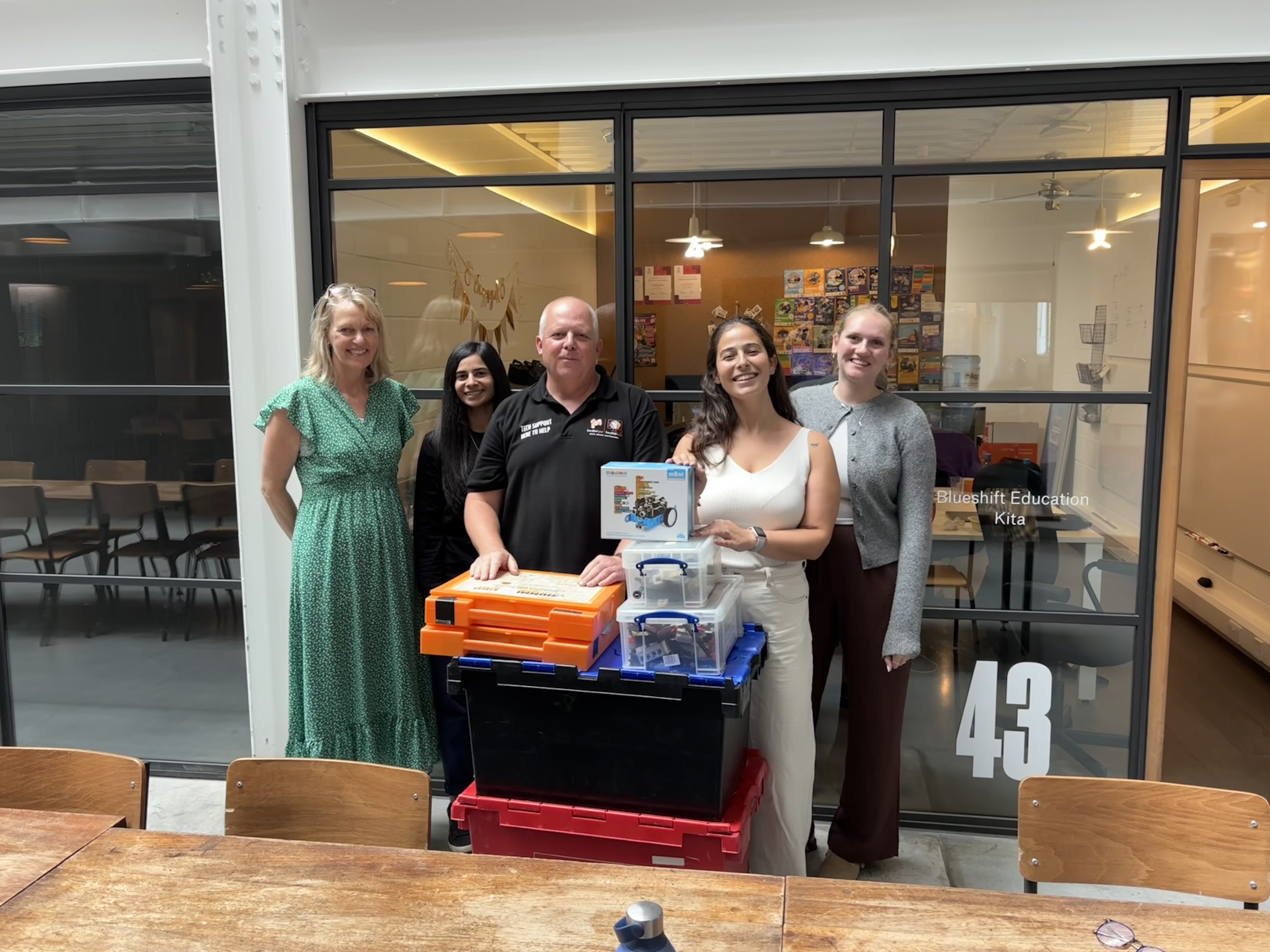
See the real impact of our work from community events to classroom smiles. A glimpse into the lives we’ve touched and the journeys we’ve helped shape.






Looking for help with a device? Please note that Every Child Online does not provide devices directly to members of the public. *
We’d love to hear from you! Whether you’re interested in partnering with us, making a donation, or simply want to learn more about our work, please get in touch using the form.
*Every Child Online operates within the UK only. We provide support through trusted referral partners, including schools, charities, social services and community organisations. We do not supply devices directly to members of the public or outside the UK.


